Commercial Center, Westlands. 0707 240 000 / 0733 240 000 info@hostmasters.co.ke

cPanel login error troubleshooting Host Masters

cPanel Login Troubleshooting Process

Having trouble accessing cPanel? This step-by-step cPanel login troubleshooting guide helps you quickly fix common issues such as incorrect login details, IP blocks, browser errors, DNS problems, and suspended hosting accounts. Learn how to reset your cPanel password, verify server access, and restore control panel access efficiently.

Step 1: Confirm the Correct Login URL

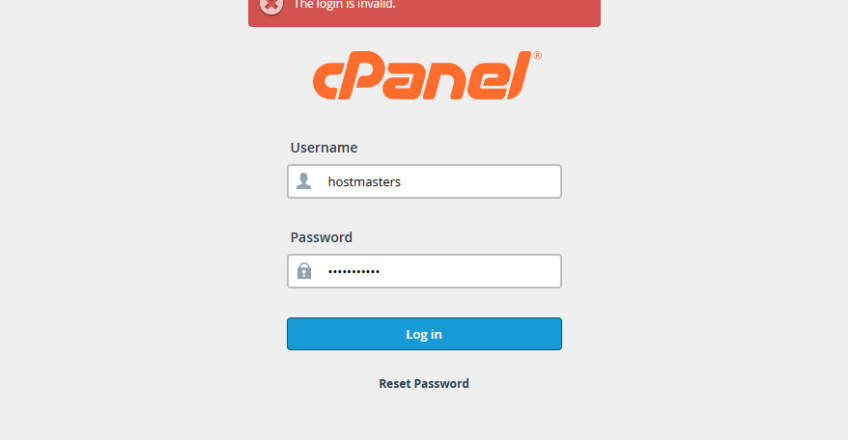
  1. Ensure the correct URL is used to login. (Ask client to share screenshot with error message capturing the Login URL and verify if it is the correct one).

  2. The correct Login URL should be:-
    1. https://yourdomain.com:2083
    2. https://serverIP:2083
    3. https://yourdomain.com/cpanel
      NB: Replace yourdomain.com with actual registered domain name (E.g https://hostmasterskenya.com/cpanel

Step 2: Verify Username & Password

  1. Confirm the cPanel username (not email username).
  2. Ensure no spaces before or after the password.
  3. Passwords are case-sensitive.

If unsure → proceed to password reset.

Step 3: Verify Username & Password

  1. Reset cPanel Password via:
    • Client billing panel (if available)
    • Web hosting control panel (WHM / client area)
    • Ask hosting support to reset the password

After reset, wait 2–5 minutes before logging in again.

Step 4: Check Internet Browser Issues

  1. Clear cache and cookies
  2. Try Incognito / Private mode
  3. Try a different browser (Chrome, Edge, Firefox)
  4. Disable browser extensions temporarily

Step 5: Check Internet Browser Issues

  1. Check Firewall / IP Block
  2. If error shows:
    1. “Your IP address has been blocked”
    2. “Access denied”

➡ Ask support to whitelist the IP or remove the firewall block.

Step 6: Confirm Hosting Account Status

  1. Check whether the hosting account is:
    1. Active
    2. Suspended
    3. Expired

A suspended or expired account will block cPanel access.

Step 7: DNS & Domain Issues

  1. If using domain login:
    1. Confirm the domain is pointing to the correct nameservers
    2. Try logging in using the server IP instead of domain

Step 8: Check Server Status

  1. If none of the above works:
    1. Server may be down or under maintenance
    2. Verify server uptime with hosting provider

Step 9: Escalate to Support

  1. Provide the following details:
    1. Domain name
    2. cPanel username
    3. Error message screenshot
    4. Client IP address
    5. Time of attempted login